
Manage Tasks & Record Tracking
Overview
Tasks & Record Tracking helps you stay on top of compliance requirements and documentation – like CPR training, fire drills or immunization records – by scheduling reminders and collecting proof of completion, all within Rayz Kidz. Tasks can be one-time or recurring, and can be assigned to a group, a specific caregiver, or a child's parent(s).
Getting Started
Before you can use Tasks & Record Tracking, you'll need to set up at least one Group. Groups are what let you assign tasks to a set of children, and – if applicable – to the employees or assistants who care for them.
Open the Rayz Kidz app.
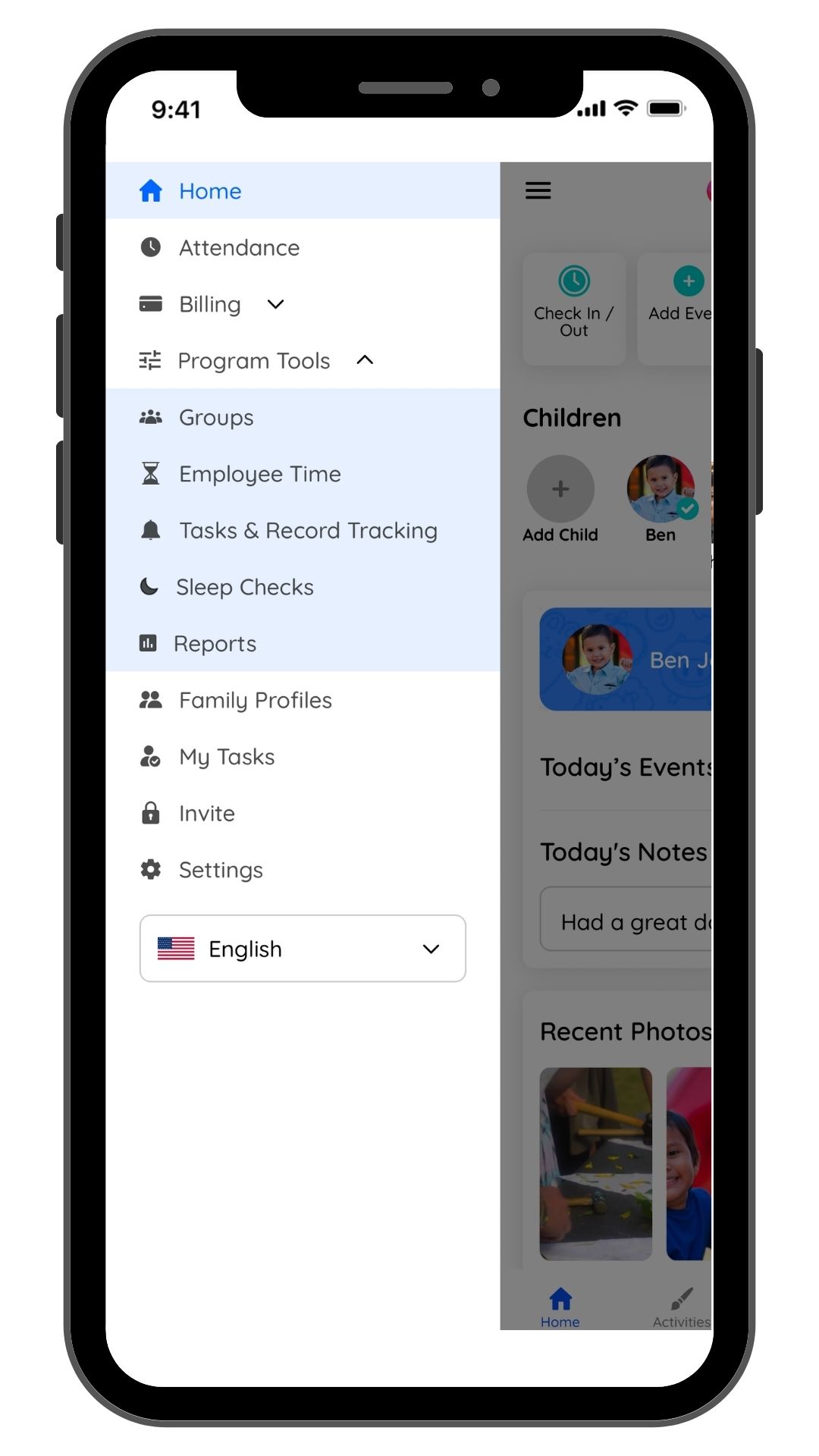
Open the Menu bar and expand Program Tools
Tap Add a Group.
Select the children who belong to this group, then tap Save.
If applicable, invite employees/assistants to the group by entering their email address.
Only the account owner can add a group. Doing so unlocks admin-level permissions over the features tied to that group, including Tasks & Record Tracking.
Once the group has been created, Tasks & Record Tracking will appear as a tab under Program Tools, and My Tasks will appear in the Menu bar.
Creating a Task
Open the Menu bar, expand Program Tools, and tap Tasks & Record Tracking.
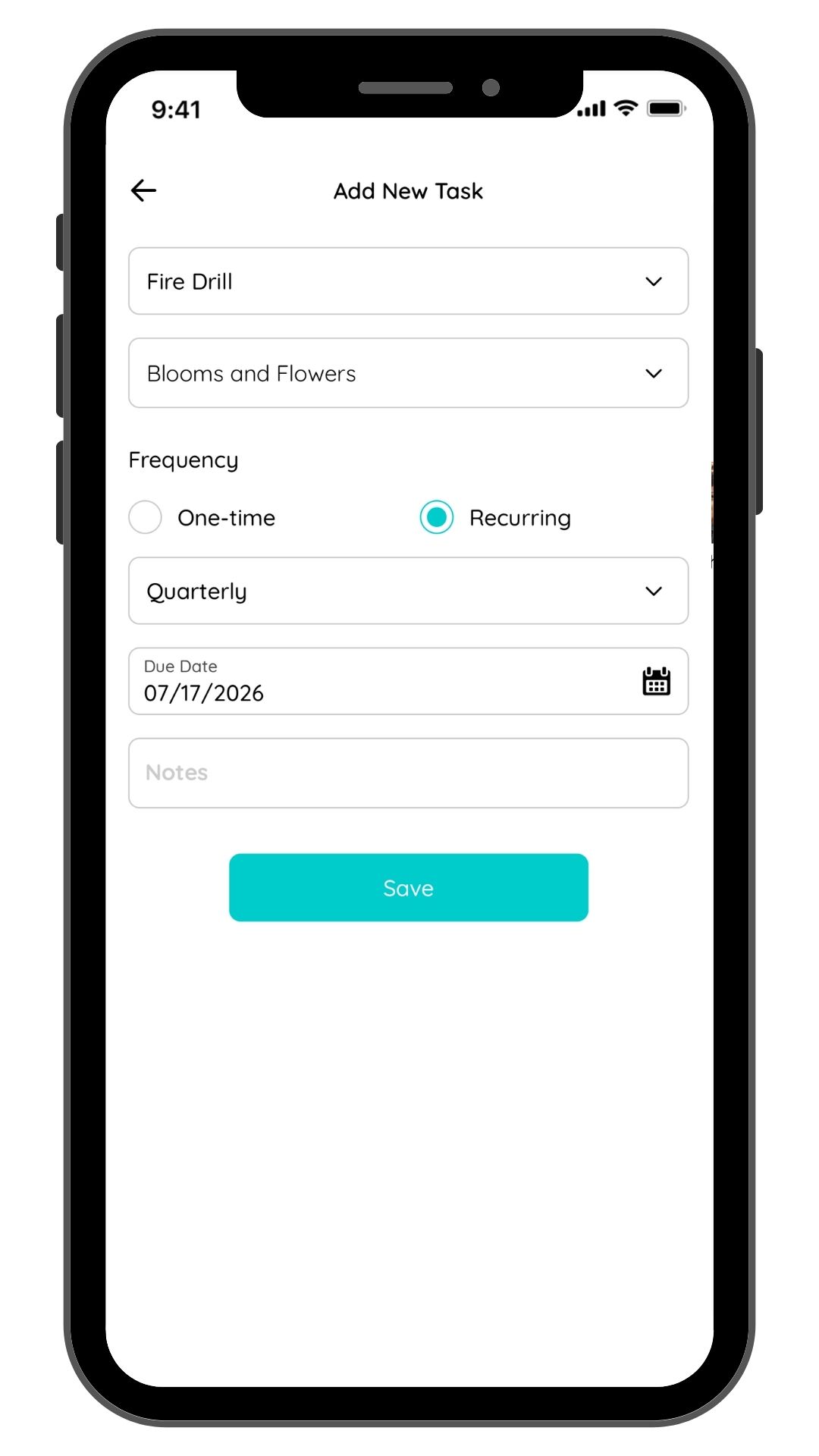
Tap + Add New Task.
Select the task type:
CPR Training
Fire Drill
Earthquake Drill
Immunization
Mandatory Reporter Training
Update Handbook
Professional Development
or tap Custom to create your own task title
Choose who the task is assigned to:
A Group – the task goes to the group admin (the group's creator) and all group caregivers
A specific Caregiver – must already belong to a group as a group caregiver
A Child – the task goes to that child's parent(s)
Select the frequency
One time
Recurring – choose from Monthly, Every 2 months, Quarterly, Semi-annually, Annually, or Every 2 years
Select the date due. For recurring tasks, this is the first due date – future reminders are generated automatically once each deadline has passed.
Tap Save to create the task.
Where Assigned Tasks Appear
Once created, a task appears under Menu bar > My Tasks > Upcoming for every person it was assigned to.
Completing a Task
Anyone assigned a task can mark it complete directly from their Upcoming tab.
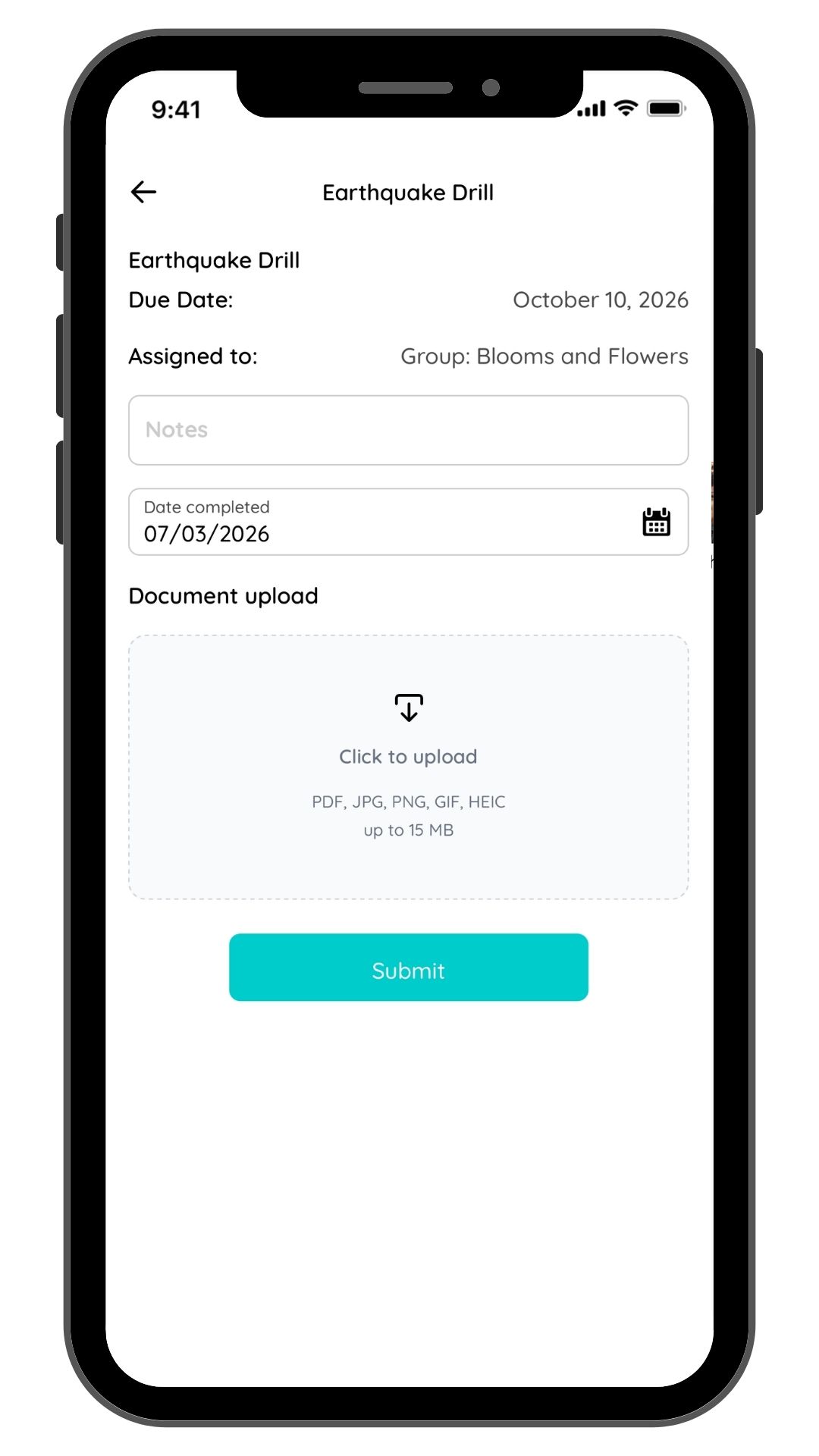
Open the Menu bar > My Tasks > Upcoming or Past Due, and select the task.
Add an optional note.
Select the date completed.
Optionally, upload a document (PDF, JPG, PNG or HEIC – up to 15 MB).
Tap Submit.
Once submitted, the task moved to Completed for the person who completed it.
Reviewing Completed Tasks
Task creators can review completed items – including any notes and uploaded documents – under Program Tools > Tasks & Record Tracking > Completed.
Made a mistake? Either the assignee or the task creator can edit a completed task – for example, to correct the completion date or replace an uploaded document.
Notifications
Rayz Kidz automatically reminds assignees a task's due date approaches, from 7 days before until the day it is due. If a task isn't completed by its due date, escalating overdue reminders begin through day 10.
Frequently Asked Questions
What's the difference between assigning a task to a Group vs. a Caregiver? Assigning to a Group sends the task to the group admin and all group caregivers. Assigning to a specific Caregiver sends it only to that individual – but they must already be added to a group as a caregiver.
What happens after a recurring task's first due date passes? The next occurrence's reminder is generated automatically – you don't need to recreate the task.
Can I see notes and documents after a task is completed? Yes. The task creator can view all notes and uploaded documents under Tasks & Record Tracking > Completed.
Can I edit a task after I've created it? Yes – task creators can update the due date, assignee, or other task details at any time, including reassigning it to a different group, caregiver, or child.
Can I complete a task that I created on behalf of another person? Yes – you can create a task for yourself (e.g. collect field trip forms) and complete it. Alternatively, if you've assigned a task to children – i.e. the parent(s) – and the parent send you documentation separately from the task, you can complete the task and upload the documents to store it safely in the app.